How to host a room
Want to host a room with your friends?
Put on your VR headset and open Bigscreen BETA.
Create a Room
You should be in your room when you launch the game. If not, open your menu and press “Exit to my room” at the top.
Choose:
- Room Type: Choose between a variety of settings to open or limit who can join your room (e.g., Invite only, Friends only or open for everyone)
- Room Environment: Choose the environment of your room (Theater, living room, sci-fi room, etc.)
- Room Name: Keep it clear and honest (e.g., “Chill Movie Night” beats “BEST ROOM EVER”).
- Room Description: Short explanation for the purpose of your room. You can also mention rules of your room here.
- Max users in Room: A slider that sets how many people are allowed in at once.
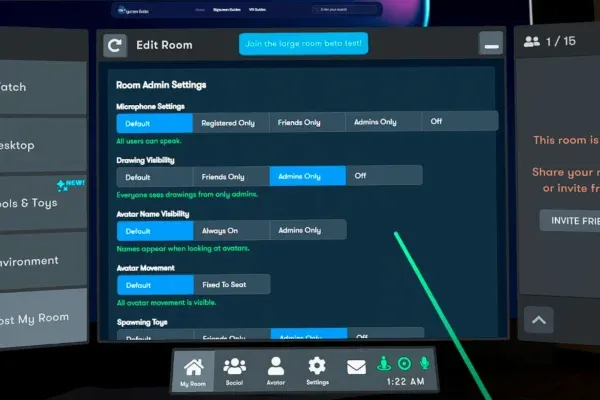
Set Room Permissions
Before opening the doors, check these:
- Microphones Settings: Who can use their microphone in your room
- Drawing Visibility: Restricts who can use drawing tools/toy in your room
- Spawning Toys: Restricts who can spawn tools/toys in your room
- Avatar Movement: Decide if you want people to be able to move around or be restricted to diamonds
Choose What You’re Showing
You can host/show your PC screen in your room by clicking ‘Desktop’ or YouTube. You can show movies, play music, etc.
Moderation
As the owner of the room, you can moderate the people who enter. Open your menu and you’ll see all members of the room on the right. Click their name and you have the option to kick them out. If you want to prevent them from joining, you have to block them.
If you’re on Bigscreen Behind, you can assign additional moderators in your room.