Bigscreen Tips & Tricks
Essential Tips for Getting Started in Bigscreen VR
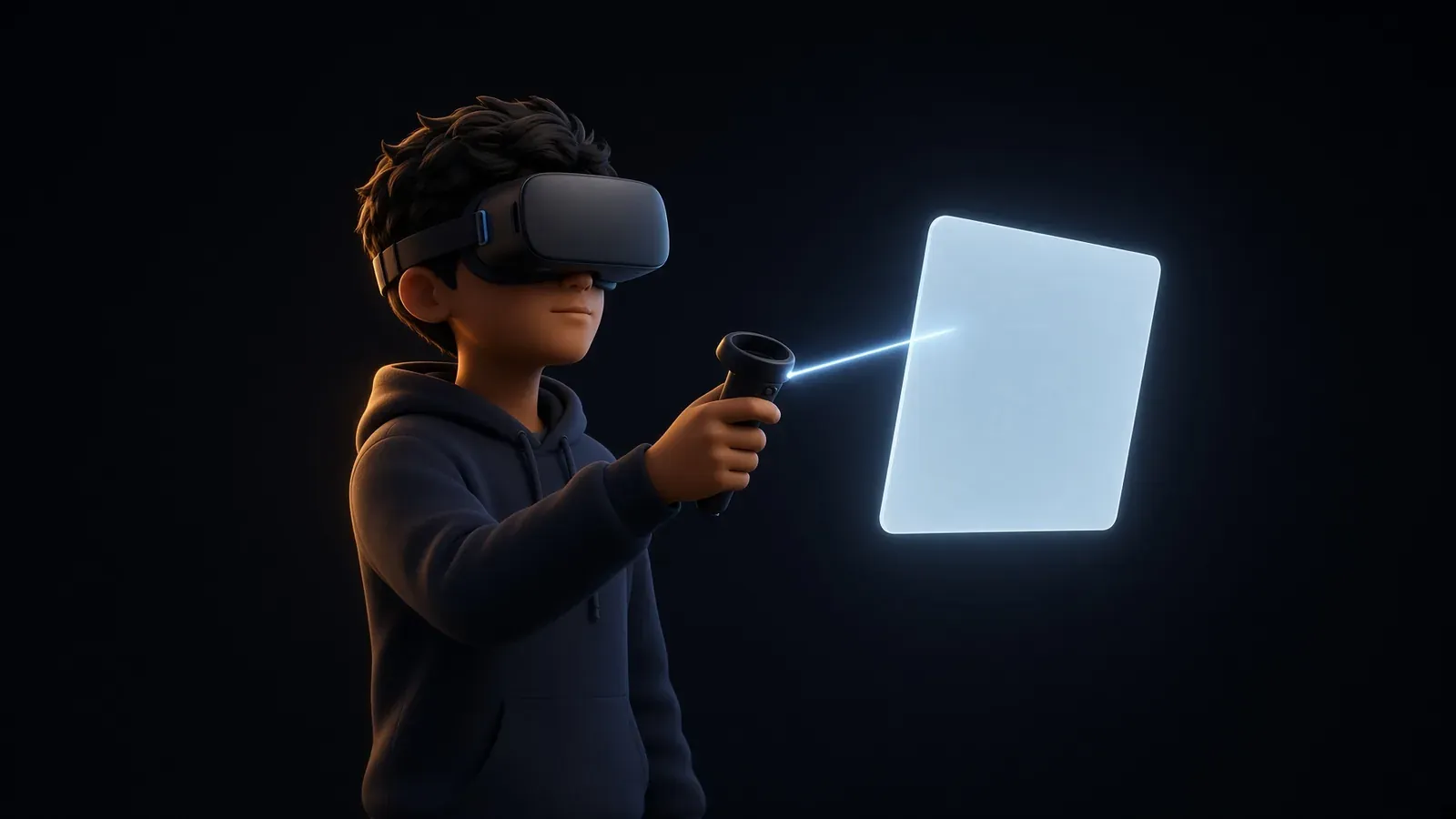
In Bigscreen, you interact with people and objects using your VR controllers. To select something, point your controller at it (a beam or cursor often appears) and press the trigger button (usually the index-finger button on the front of the controller). To open your main menu, press straight down on the analog stick (thumbstick) like a button - this brings up your personal tablet-like interface.
Make your menu easier to read
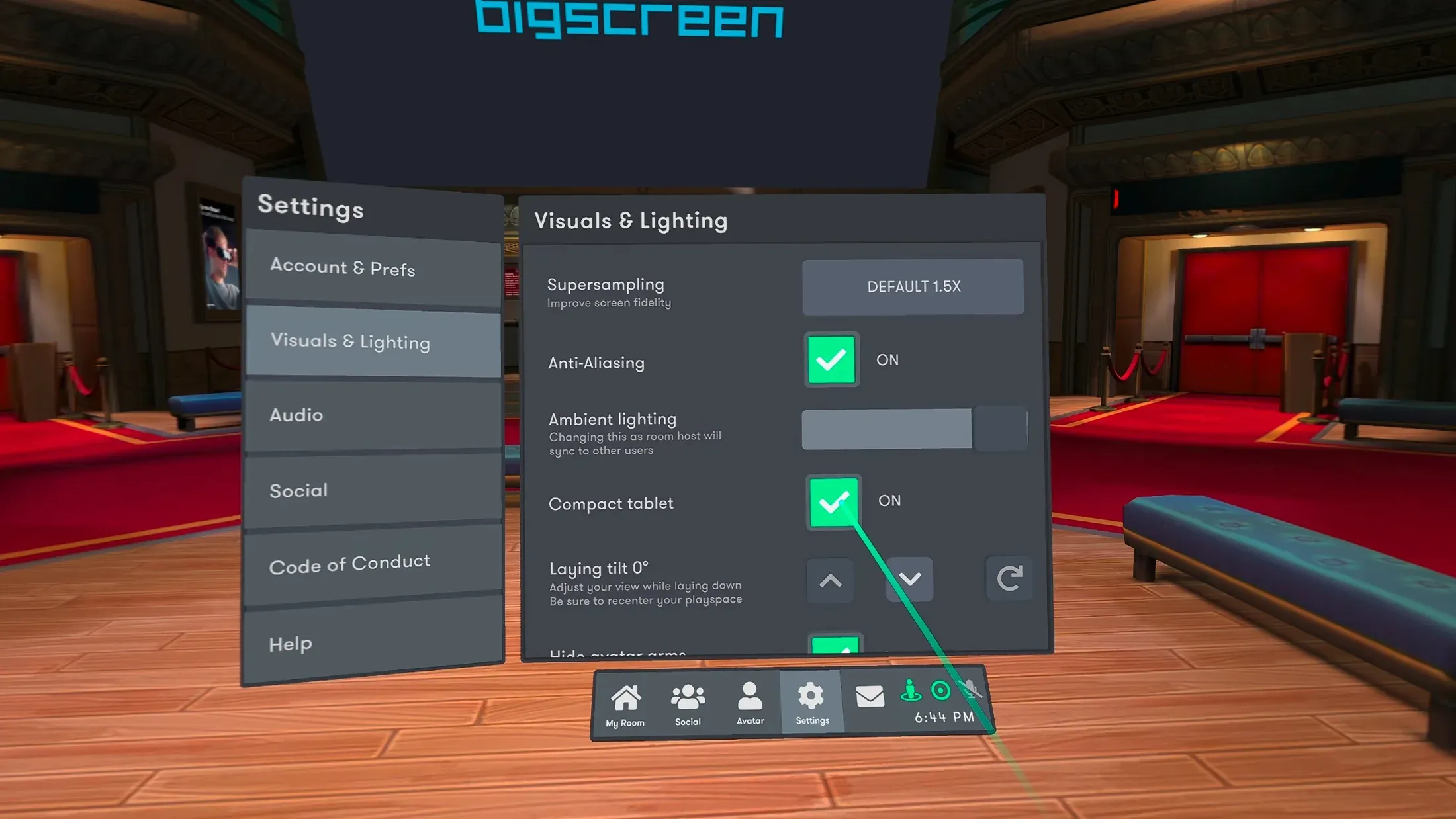
The default menu can feel large and overwhelming. To shrink it for better comfort:
This change is strongly recommended, as it makes the interface much more manageable.
- Open your menu (press down on the analog stick).
- Go to Settings (usually found in the menu tabs).
- Select Visuals & Lighting, then check Compact Tablet.
Adjust people’s volume
If someone speaks too loudly (or too quietly), you can change their volume individually without affecting others.
- Look at the person whose volume you want to adjust.
- Point your controller at their name tag (it appears when you look near their chin or head).
- Press the trigger to open their quick menu.
- Find the Mic Audio slider and drag it left (to lower volume) or right (to raise it). This is especially helpful in group rooms.
Block someone who is disruptive
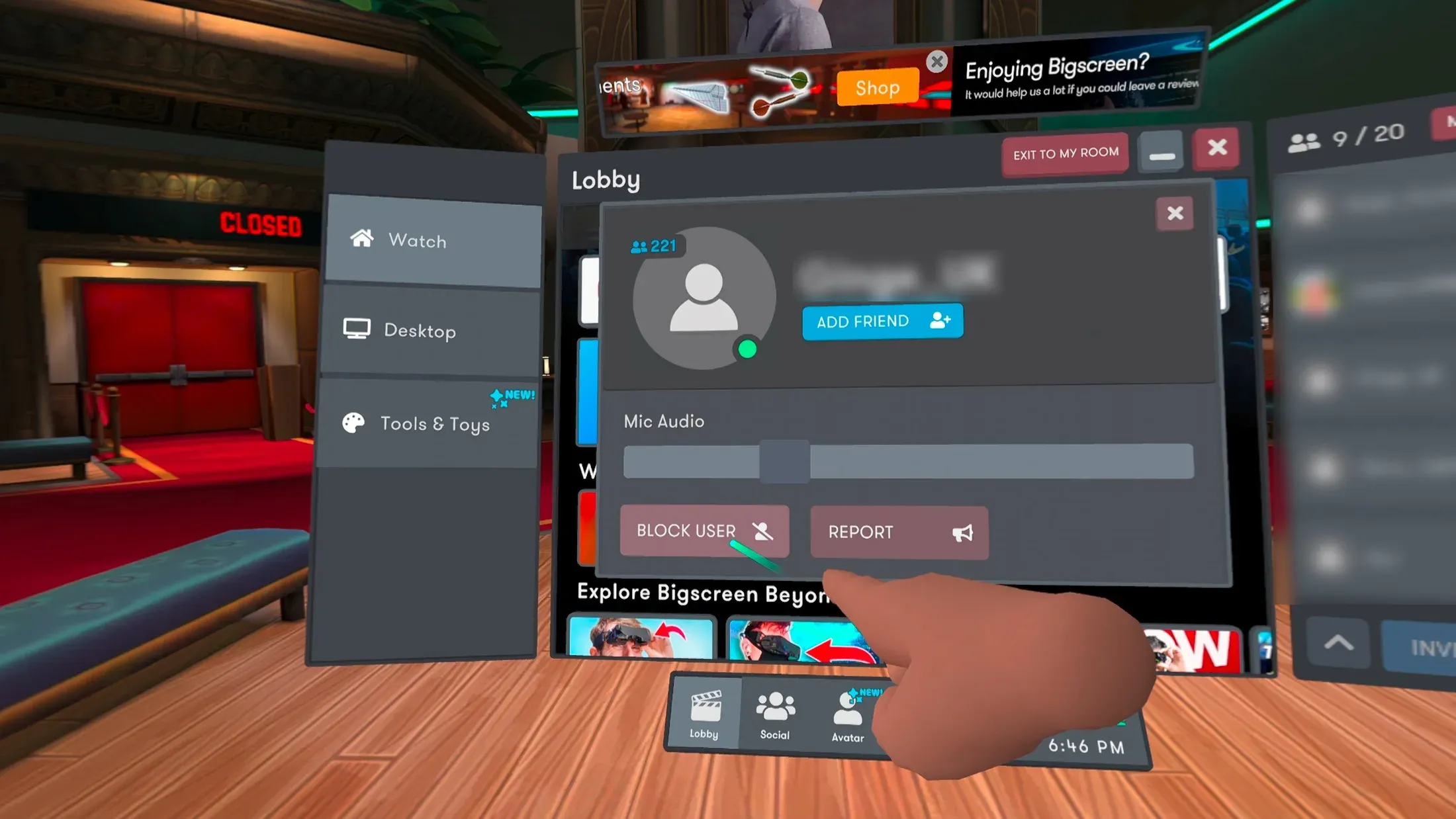
If another user is bothering you, you can prevent them from interacting with you:
- Look at the person you want to block. Their name appears above their head.
- Point your controller at the name and click it. Their menu card opens.
- Select Block at the bottom of the card.
- Once blocked, that person becomes invisible and inaudible to you, and you become invisible and inaudible to them. You can reverse this later by unblocking if desired.
Report rule-breaking behavior
Bigscreen has a Code of Conduct to keep the community safe and enjoyable (you can read it in Settings > Code of Conduct). If someone violates these rules:
- Look at the person you want to report. Their name appears above their head.
- Point your controller at the name and click it. Their menu card opens.
- Choose Report.
- In the box that appears, write a clear description of what happened.
- Submit the report. Detailed reports help the moderators maintain a positive environment.
Bigscreen has active mods who monitor the reports and players every day. A report goes a long way toward removing disruptive people from the application.
Reset your position to the center of the room
Sometimes your viewpoint can shift (for example, if you play while lying down or get stuck in the environment). To return to the room’s center:
- Open your menu (press down on the analog stick).
- Look in the bottom-right area of the menu.
- Press the green circle icon (with a dot inside it) located next to the microphone symbol. This instantly repositions you comfortably in the middle of the space.
Use a Diamond Seat for a fixed viewing spot (Public Spaces)
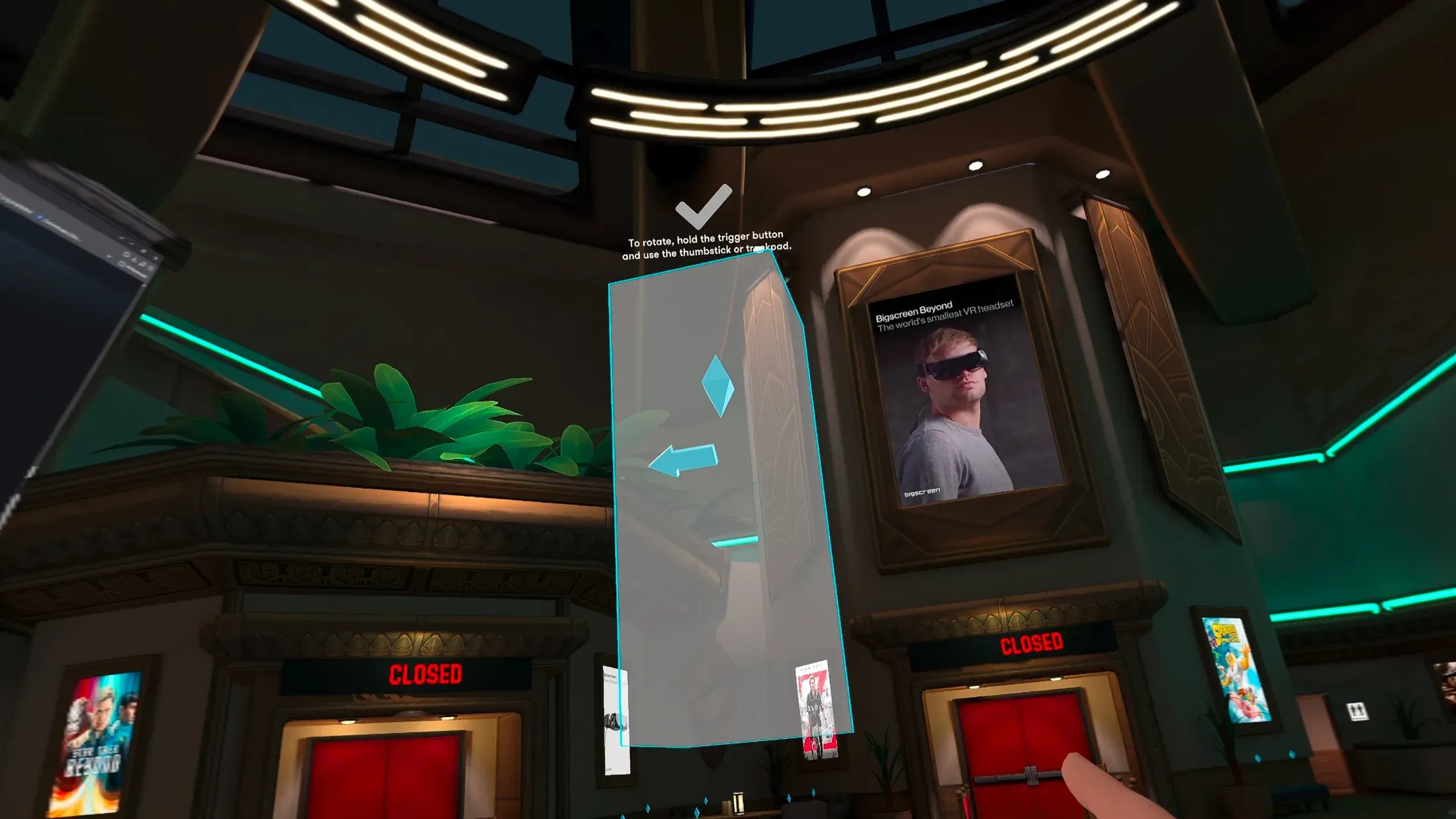
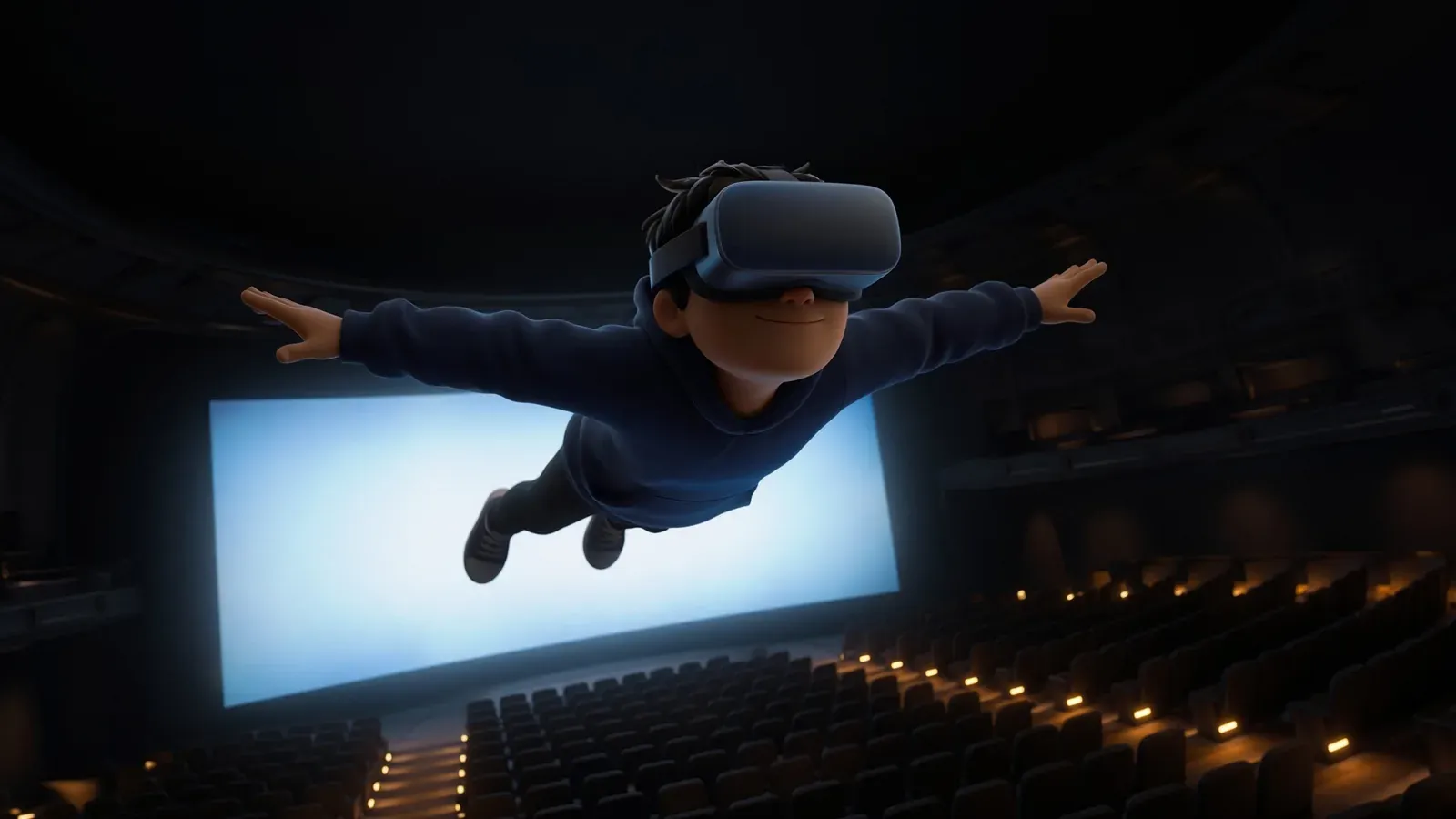
A Diamond Seat lets you lock yourself in one spot (such as floating in the air or directly in front of a screen).
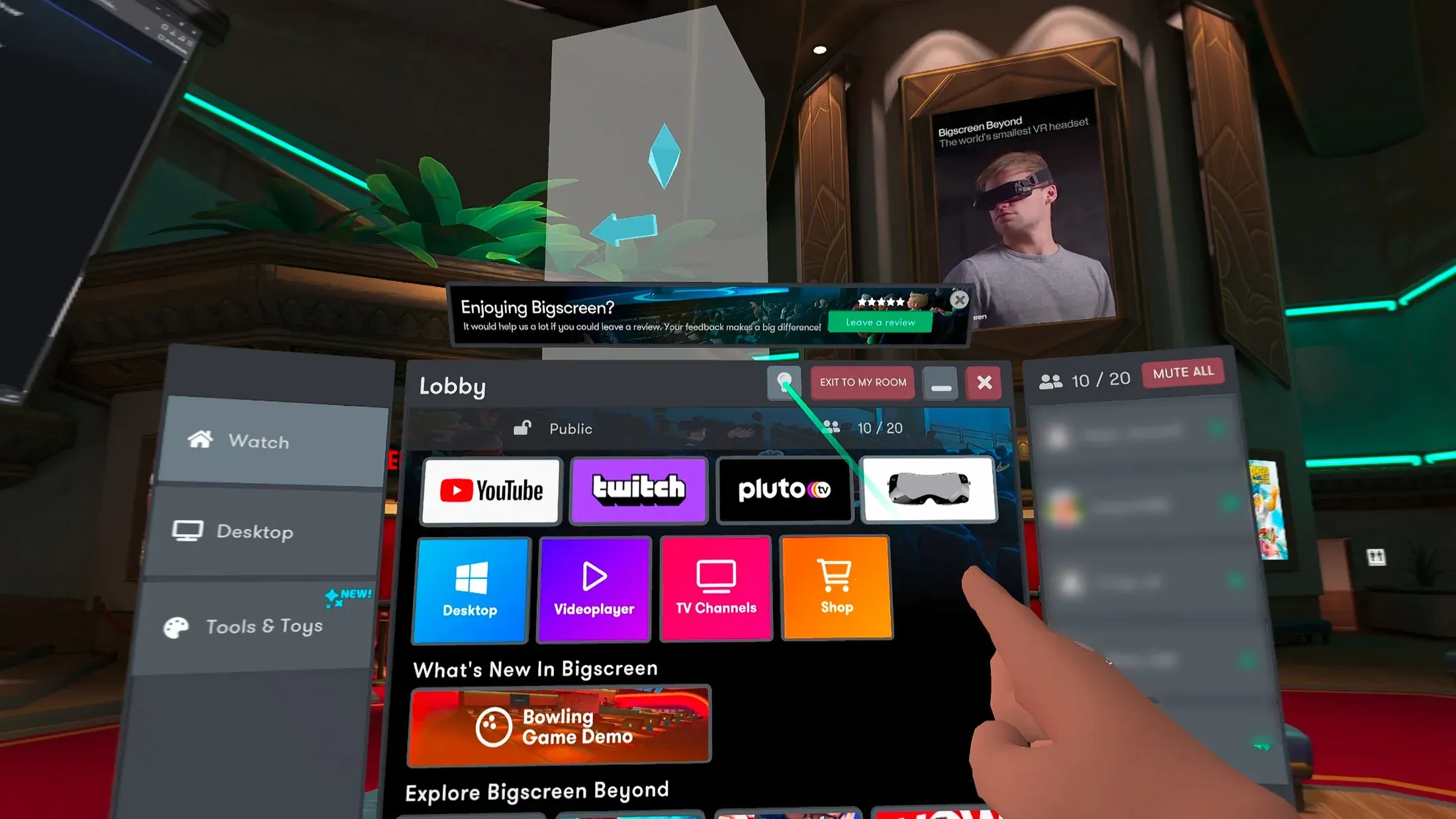
- Open your menu. Make sure you are on the Lobby page (check the thin bottom bar menu).
- On the left side, select Tools & Toys.
- Choose Diamond seat.
- Point your controller at the diamond that appears and hold the trigger to grab and move it to your preferred location (you can place it anywhere, even in mid-air).
- Release the trigger.
- Aim above the diamond at the checkmark icon and press the trigger to confirm the position.
- To move to that spot, push your analog stick forward while aiming at the diamond.
Note: Do not place the diamond too far away, or you may not be able to reach the checkmark to confirm.
Unlock hidden skyboxes for different environments
For a small Easter egg that changes your room background:
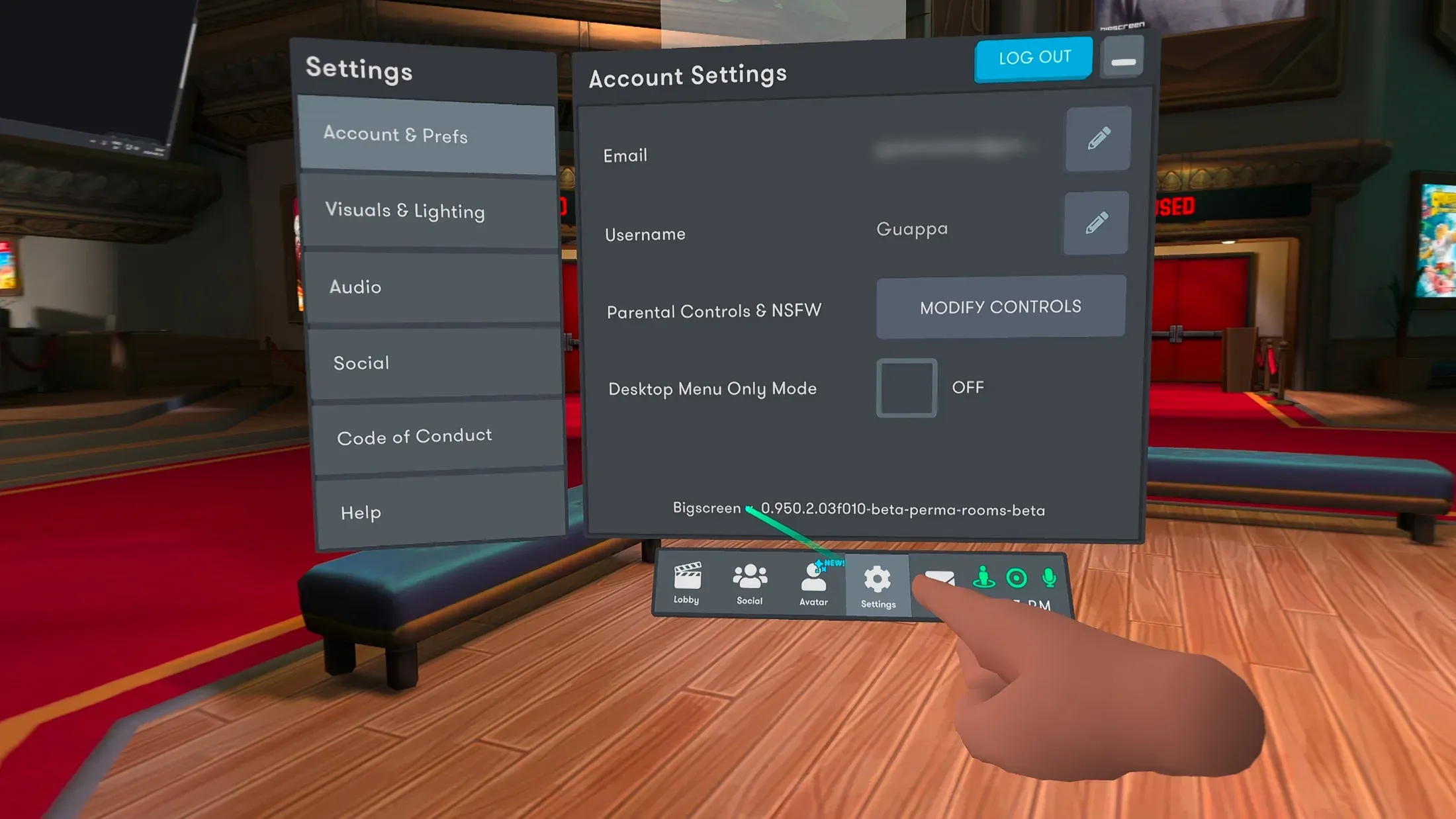
- Open your menu and press settings.
- At the very bottom, find the text that says “Bigscreen v” followed by a version number.
- Point your controller at the word “Bigscreen” and quickly press the trigger 10 times.
- Listen for a confirmation sound (a “ding”).
- Return to the lobby view.
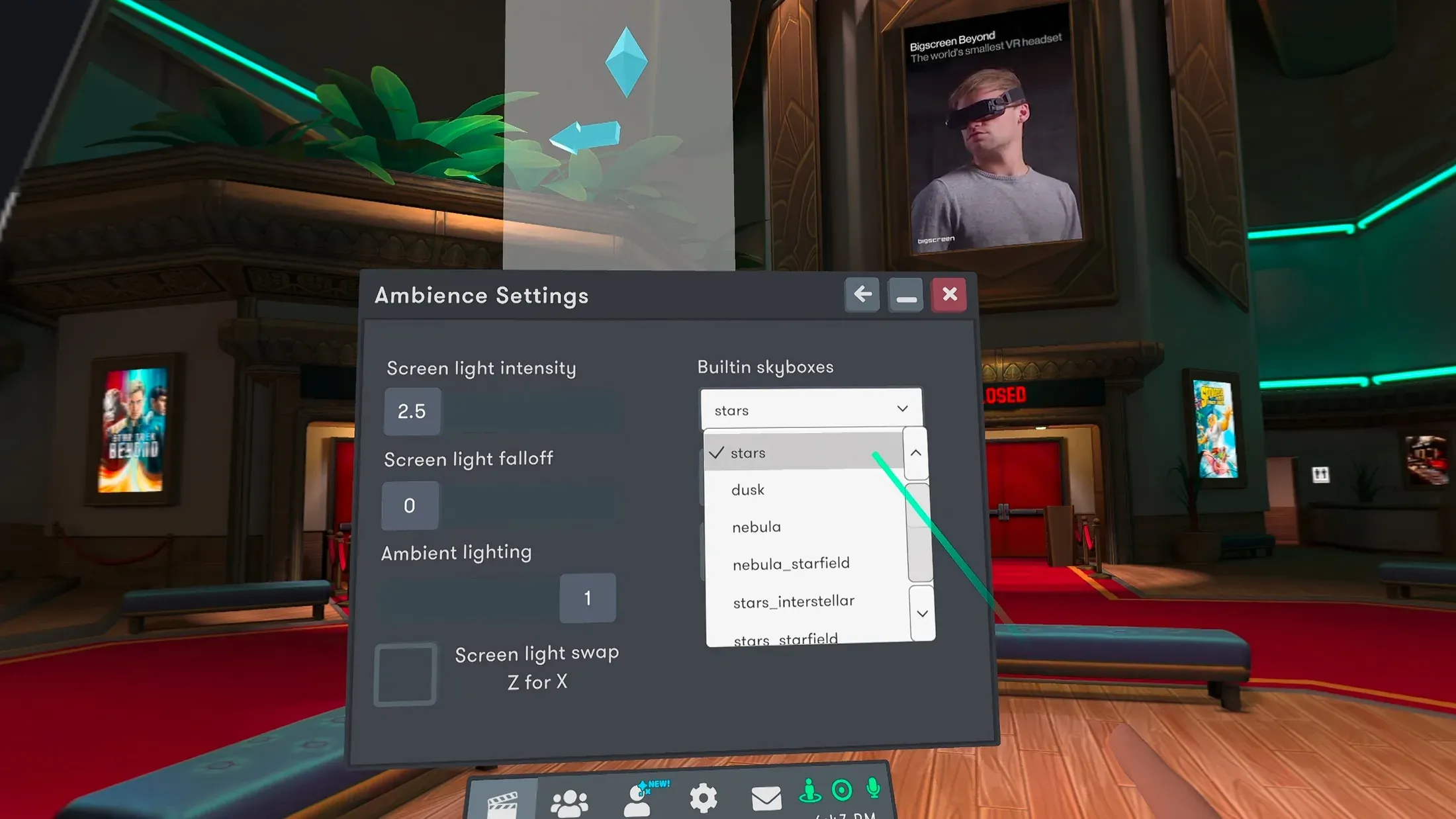
- Look up at the top of the screen - you will now see a light bulb icon next to “Exit to my room”.
- Select the light bulb to open Ambience Settings.
- On the right side, open the Builtin skyboxes dropdown for additional sky and environment options.