Share desktop in Bigscreen
Show your PC screen in Bigscreen
There are several ways to share your desktop to Bigscreen.
Using the Bigscreen application
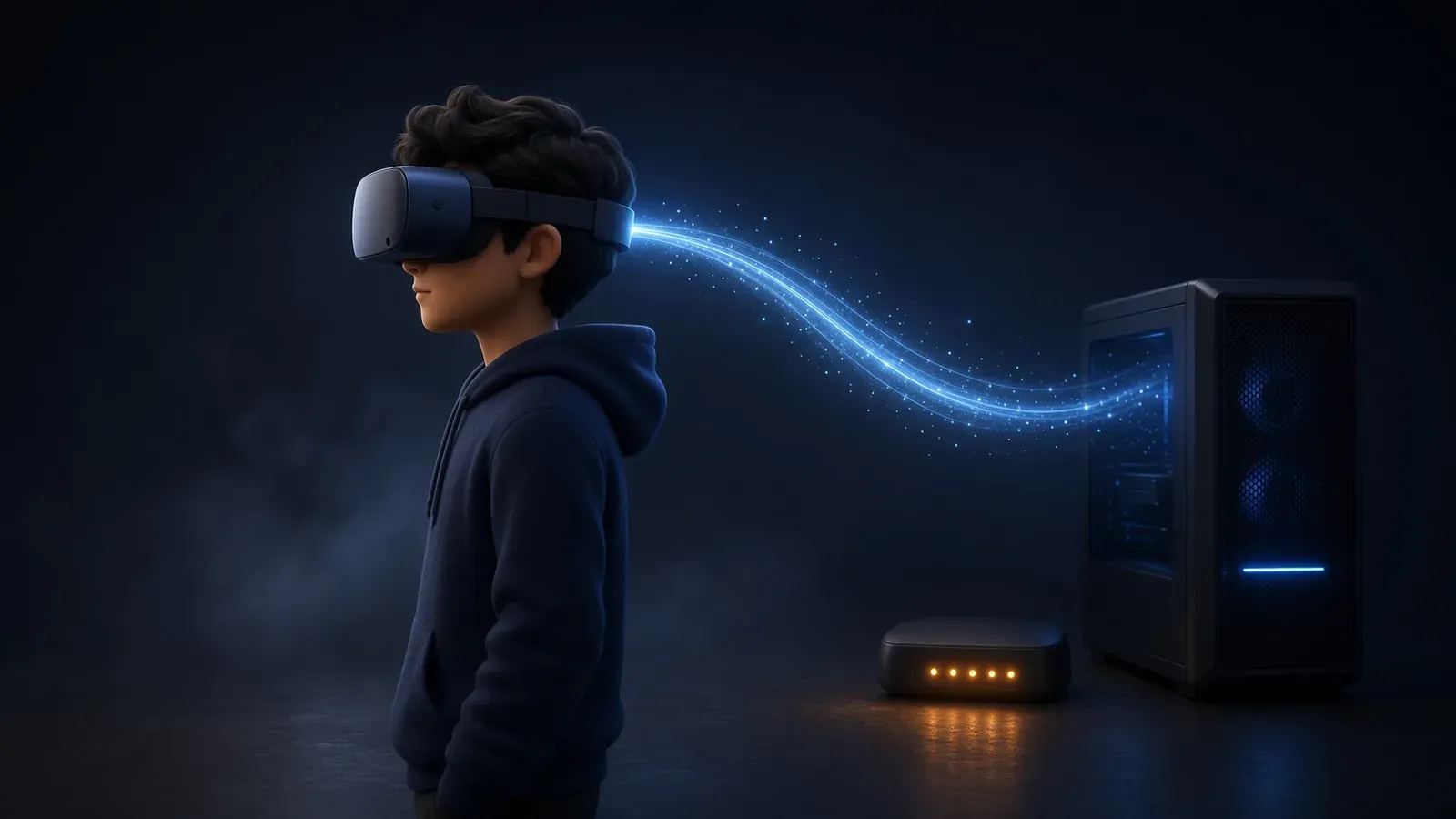
Bigscreen’s Remote Desktop feature enables users to view and interact with their Windows PC desktop directly within the VR environment of the Bigscreen application on a Meta Quest headset. This is achieved through local network streaming, allowing the PC desktop to appear as a large virtual screen in the immersive 3D space.
Install and launch the Bigscreen Remote Desktop application on a compatible Windows PC. This lightweight client uses hardware-accelerated encoding (supported by most modern NVIDIA, AMD, or Intel GPUs) to capture and stream the desktop content over the local Wi-Fi network.
Both the PC and the Quest headset must be connected to the same private network, with the headset preferably on a 5 GHz Wi-Fi band for optimal performance and low latency.
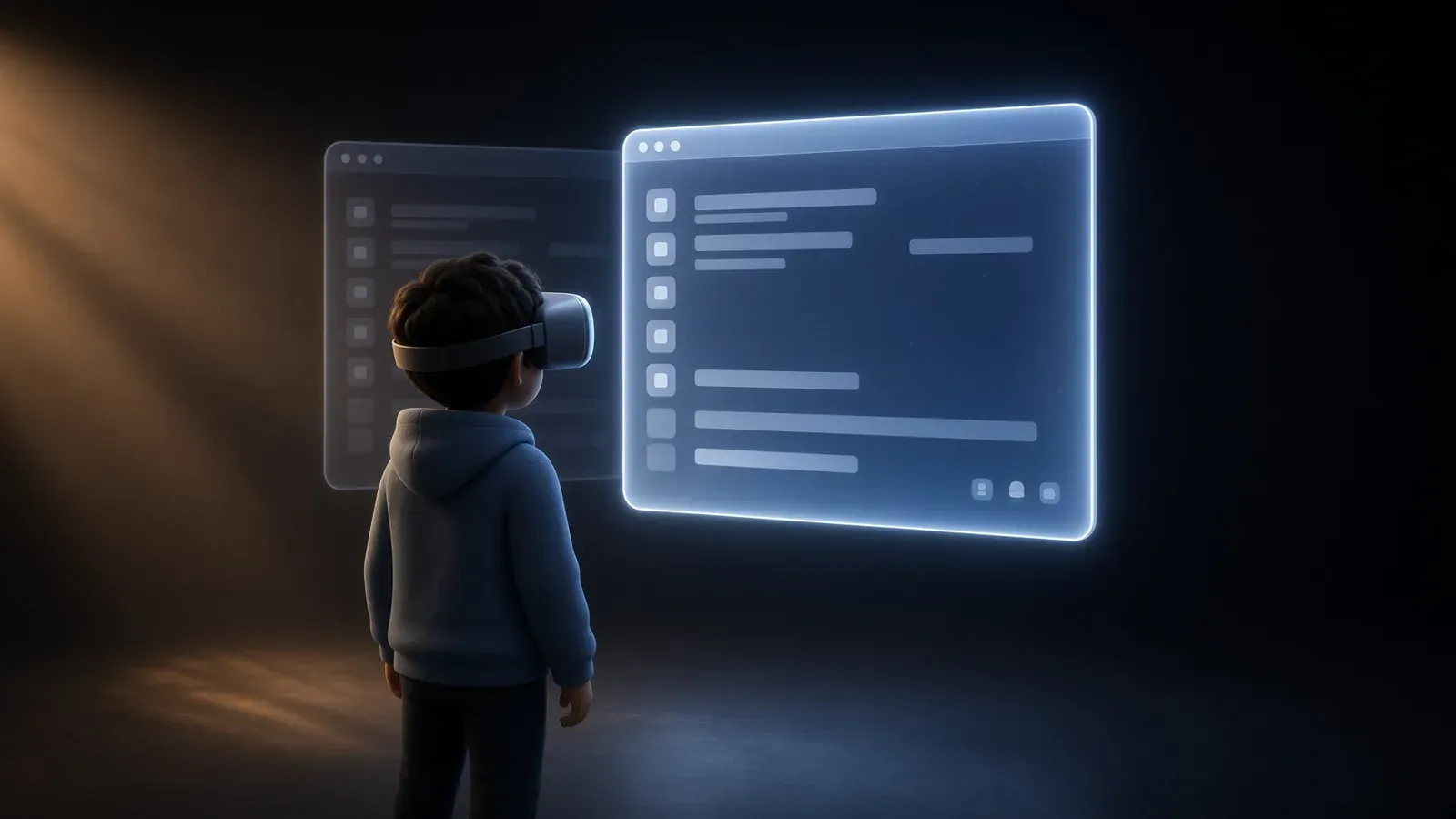
Once the client is running on the PC and the user launches Bigscreen on the Quest (using the same account credentials), the desktop stream connects automatically. The PC desktop is displayed prominently on a large virtual screen at the front of the virtual room.
Users can then browse the web, run applications, watch videos, or perform other desktop tasks in VR. For collaborative use, the desktop stream can be shared with others in the same virtual room by toggling the Remote Desktop sharing option in the Bigscreen menu (under the My Room tab).
This approach provides a wireless, immersive way to extend the PC desktop into VR without requiring a direct cable connection or full PCVR rendering, though it is limited to local network access and depends on network quality and GPU encoding capabilities for smooth performance.
As instructions could change, please visit the Bigscreen website (opens in a new tab) to get instructions on how to do so.
Using remote desktop (e.g. Virtual Desktop or Steam Link)
It should work automatically. Go to Desktop on the left side of your menu.